Skip to content


Sometimes an eBay listing attracts views and watchers, but still fails to sell. When that happens, I do not assume the item is unwanted. Sometimes, that eBay listing simply needs relisting to reach the right buyer.
Relisting on eBay can bring an unsold item back into circulation and help it gain fresh visibility. However, simply relisting without reviewing the price, title, photos, and item details will lead to the same disappointing result.
In this guide, I’ll explain how to relist on eBay step by step. Also, I’ll cover when to relist an eBay item, what happens to watchers, and how often you should relist.
What is Relisting on eBay?
Relisting on eBay means creating a new listing for an item that didn’t sell the first time or was ended, while also deleting the older listing.
Instead of editing the old eBay listing, you relist it again so it appears as a fresh item in eBay search results. This helps bring the item back in front of eBay buyers who may have missed it earlier.
When you choose to relist, eBay reuses most of the original listing information, such as the title, photos, description, category, price, shipping method, and item condition. This saves you from building the listing again from scratch.
Before relisting an item on eBay, you can update any details that can optimize your listing for more sales. For example, you can improve the title or description, replace bad photos with good ones, adjust the price, or add missing item details.
Is It Worth Relisting Items on eBay?
Yes, relisting items on eBay is worth it when the item is still in demand and can generate a reasonable profit.
An eBay item may remain unsold because of bad photos, an unclear title, incorrect pricing, or poor timing, not because buyers do not want it.
Before relisting, improve the listing instead of publishing the exact same version. Add clearer product photos, include relevant keywords in the title and description, review prices, and complete the item specifics.
Relisting saves time because eBay lets you reuse the original listing details. However, relisting on eBay counts as a new listing and may result in an insertion fee after you use your monthly free-listing quota.
Avoid relisting items on eBay that are damaged, prohibited, unprofitable, or no longer in demand.
How to Relist on eBay Using the Sidekick Tools App?
1. Download the Sidekick Tools app on your phone and log in to your account.
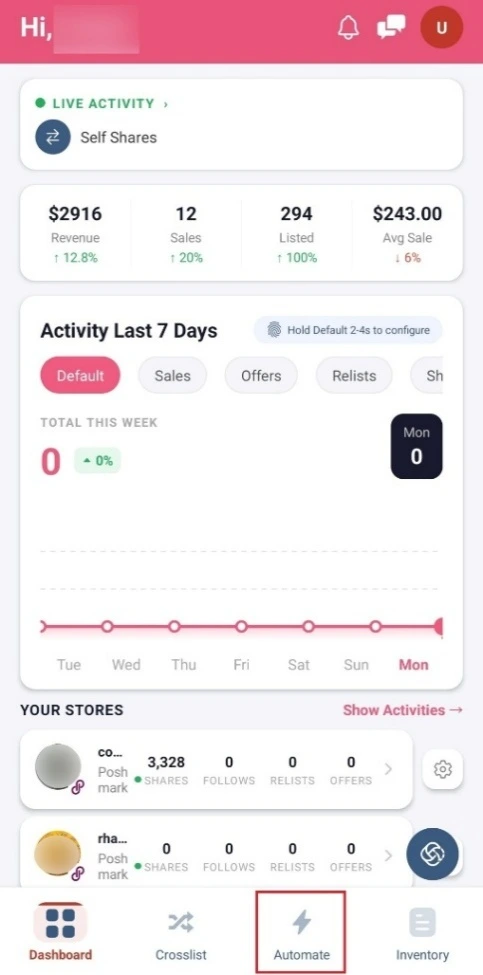
2. Next, tap “Automate” at the bottom of your screen.
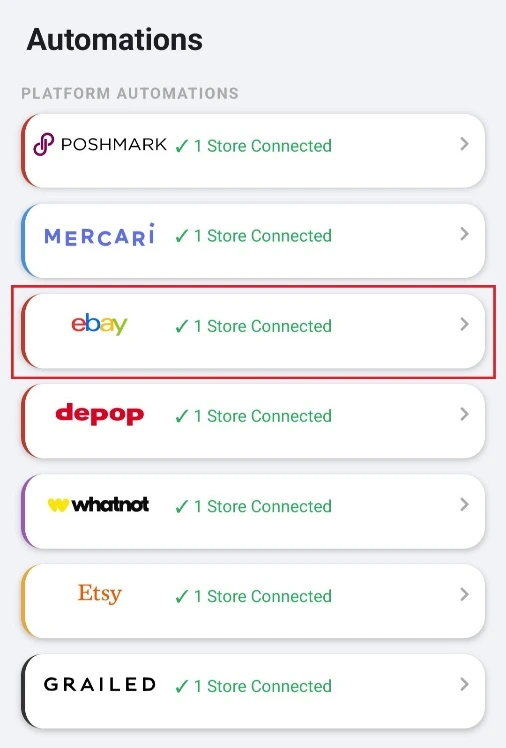
3. Tap “eBay” and connect your eBay Account.
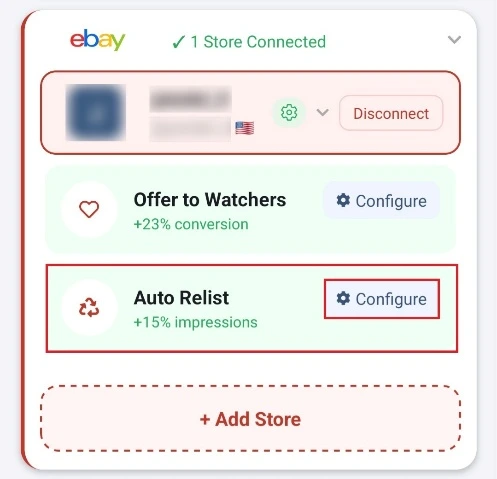
4. Then, tap the “Configure” button next to Auto Relist.
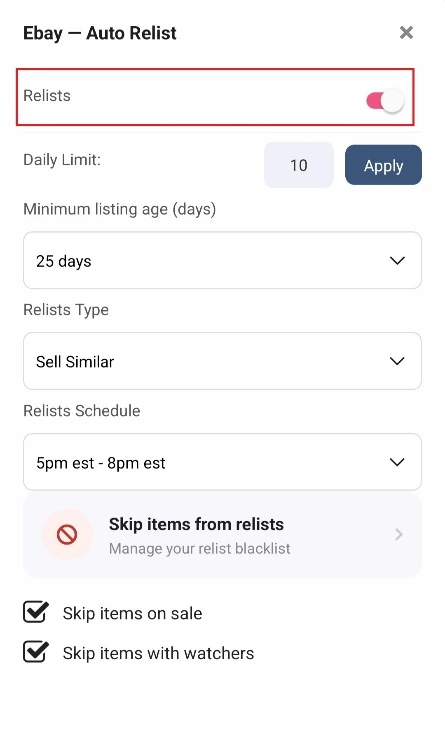
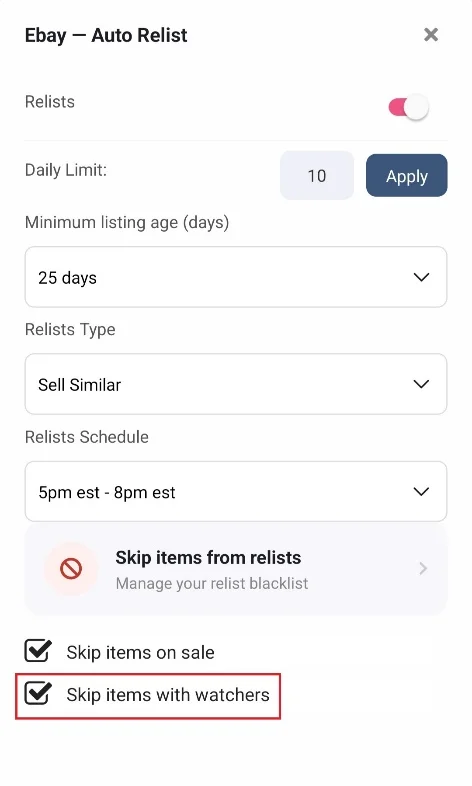
5. In the Auto Relist Settings, turn on the “Relists” toggle.
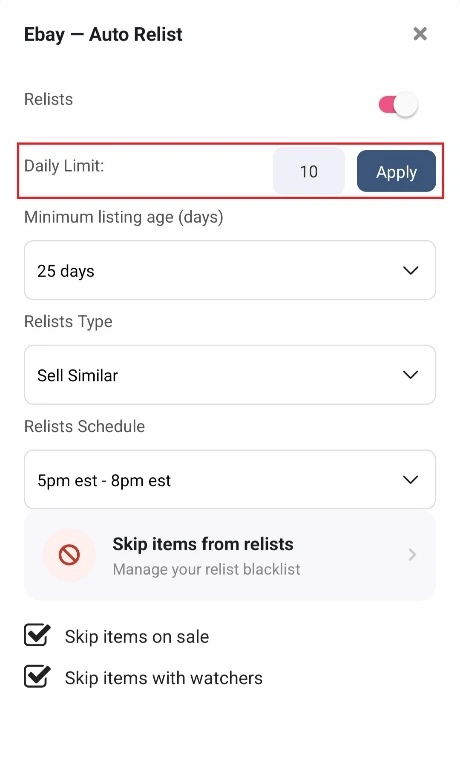
6. Select the “Daily Limit” and tap the “Apply” button.
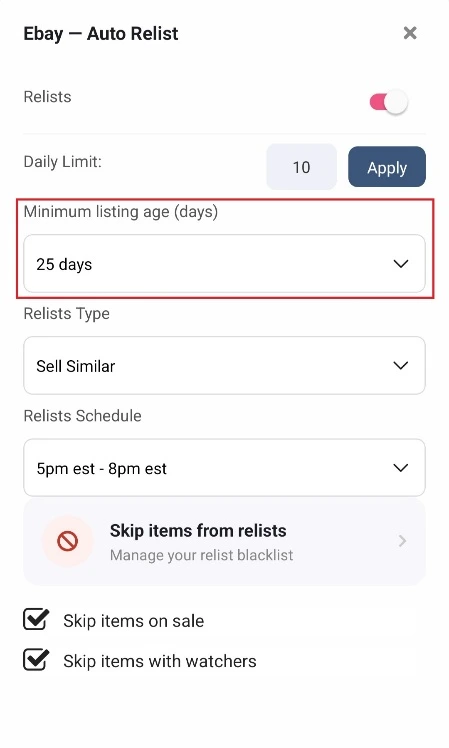
7. Next, select the “Minimum Listing Age (Days)” from the dropdown menu.
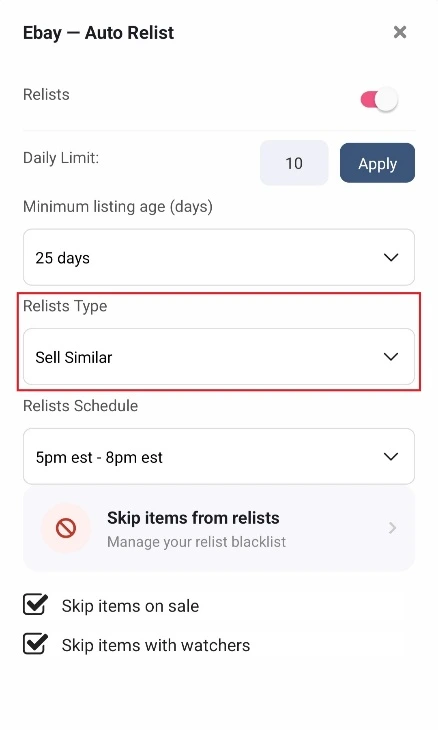
8. Select the “Relists Type.”
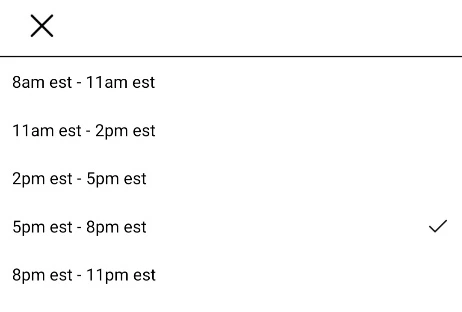
9. Then, select the “Relists Schedule” from the dropdown menu.
10. Skip Items from Relists
(a) Tap “Skip Items from Relists” if you don’t want to relist some of your items.

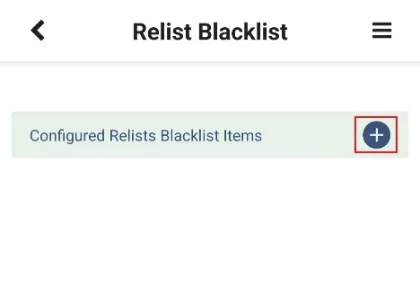
(b) Tap the + icon next to “Configured Relists Blacklist Items.”
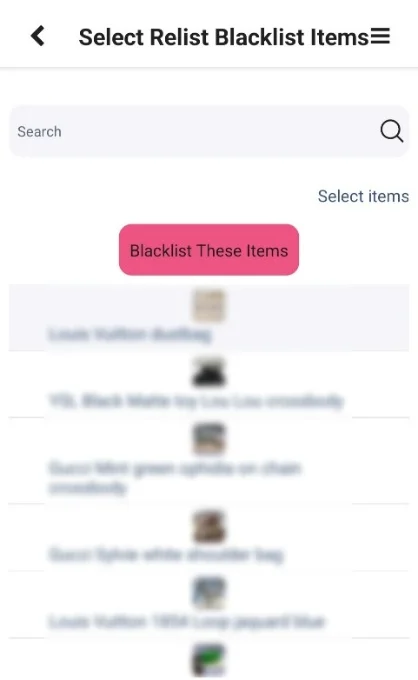
(c) Select the items one by one that you want to blacklist and tap the “Blacklist These Items” button.
11. Remove Blacklist Listings
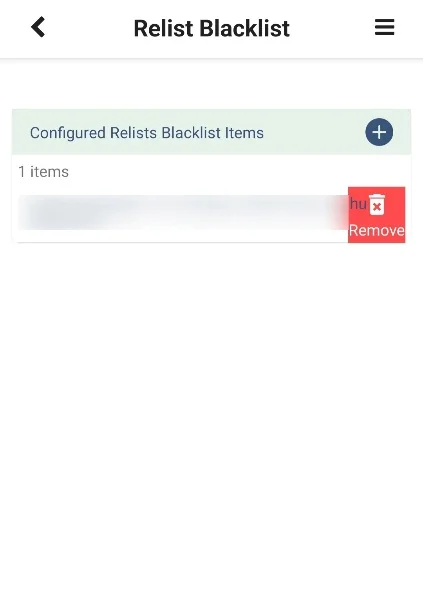
(a) If you want to remove an eBay listing from the relisting blacklist then tap “Skip Items from Relists.”
(b) On the Relist Blacklist Page, you will see all the eBay listings that are blacklisted.
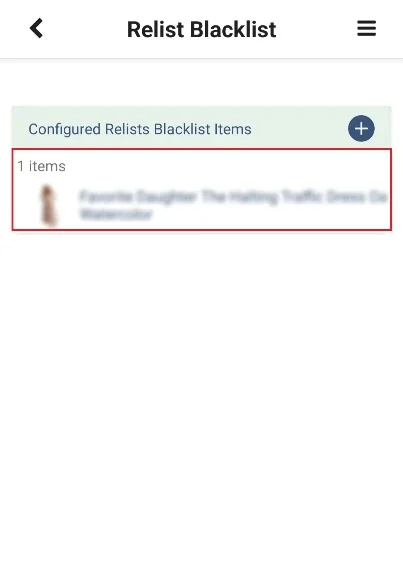
(c) Left swipe the item that you want to remove from the blacklist and tap “Remove.” Then, tap “Yes” to confirm.
12. Check the “Skip Items on Sale” checkbox.

13. Check the “Skip Items with Watchers” checkbox.
How Often Should I Relist on eBay?
You should review and relist slow-moving eBay items every 30–60 days. However, manually checking listing ages, choosing which items to relist, and relisting items regularly on eBay takes a lot of time.
That is why you need Sidekick Tools. It automatically relists eligible eBay items based on the settings you choose.
You can set a daily relisting limit, select a minimum listing age from 7 to 45 days, choose between Sell Similar and Relist, and schedule when relisting will happen.
Sidekick Tools can also skip items on sale, listings with watchers, and any items you add to your relisting blacklist. This keeps your eBay relisting strategy consistent without requiring daily manual work.
How Many Times Can I Relist an Item on eBay?
There is no fixed lifetime limit on how many times you can manually relist an unsold item on eBay. However, auction-style listings can be automatically relisted up to eight times.
Fixed-price Good ’Til Canceled listings renew automatically every month until the item sells or you end the listing.
You can manually review and relist older items every 30 to 60 days, but doing this across hundreds of listings takes considerable time.
The Sidekick Tools app automates the relisting process by identifying eligible listings, ending the old listings, and relisting them based on your selected schedule.
Can I Relist a Sold Item on eBay?
Yes, you can relist a sold item on eBay if you have another identical item available.
However, because the original sale is complete, you will need to select Sell Similar or create a new listing rather than relisting the completed order.
Do not relist a one-of-a-kind item that has already been purchased and still needs to be shipped to the buyer.
If the eBay buyer does not pay and you cancel the order, eBay will automatically relist a single-quantity Buy It Now item.
eBay will also relist an item after a return and refund, provided the item is back in your possession and still suitable for sale.
What Happens to Watchers When I Relist an Item on eBay?
When you end and relist an eBay item, the existing watchers generally do not transfer to the new listing.
The relisted item starts with a new watcher count, so interested buyers must find and watch it again.
eBay buyers may still see the ended item in their Watchlist or a link to the relisted version, but they will not automatically count as watchers on the new listing.
This is different from a fixed-price Good ’Til Canceled listing. When that listing renews each month, it remains active rather than being ended and relisted, so it normally keeps its watchers.
Before relisting an item on eBay with several watchers, consider sending them an offer first. If no one buys, you can relist it to give the item another chance to attract new buyers.
Frequently Asked Questions (FAQs)
Is it better to sell similar or relist on eBay?
Use relist when selling the same unsold item again on eBay. Choose “Sell Similar” when creating a separate listing or making major changes to an eBay listing.
How much does eBay charge for relisting?
Manual relisting on eBay uses one of your monthly zero-insertion-fee listings or incurs the standard insertion fee of $0.35.
Can I relist multiple items on eBay at once?
Yes, you can relist multiple items on eBay at once, especially when you are using the Sidekick Tools app for relisting.
How long should I wait before relisting an unsold item on eBay?
Wait about 30 to 60 days before relisting a fixed-price item on eBay. This will give the original listing enough time to attract buyers before you update and relist it.
Why don’t I see the relist option on my eBay listing?
The relist option only appears for eligible ended or unsold listings on eBay. You may not see it if the eBay listing is still active, has already sold, is automatically renewing as Good ’Til Canceled, or is no longer available in your unsold listings.