Skip to content


Ever wondered what to do when your item doesn’t sell during a live auction on Whatnot? Leaving old listings in your Whatnot shop costs you more than you think.
Learning how to relist on Whatnot is the fastest way to get your items back in front of eager buyers. This simple process revives your stale Whatnot items with just a few taps.
Fortunately, giving your items a second chance at a sale is incredibly straightforward. It only takes a minute once you know how to do it.
Let’s walk through the exact steps to quickly relist items on Whatnot.
What is Relisting on Whatnot?
Relisting on Whatnot means giving an unsold item a fresh start by creating a new listing for it instead of letting the old one sit untouched.
In simple words, you take a Whatnot item that has not sold, review the listing, and put it back in front of buyers as a fresh product listing. You can keep the same title, price, photos, and description, or you can improve them before listing the item again.

The purpose of relisting on Whatnot is not just to repeat the same listing. It is to make the item feel fresh again.
Maybe the original photos were not clear enough. Maybe the title missed important keywords. Maybe the price was too high. Or maybe the right buyer simply did not see it the first time.
Relisting on Whatnot gives you a chance to fix those issues and create a better opportunity for the item to sell.
For Whatnot sellers, this can be especially useful because fresh listings move fast during live shows, auctions, and Buy It Now listings.
If something does not sell after sitting for a while, relisting can help bring it back into your selling cycle instead of letting it get buried.
What is Cloning on Whatnot? Is It the Same as Relisting?
Cloning on Whatnot is different from relisting, although both help you reuse unsold listings.
Cloning allows you to copy an existing unsold listing so you do not have to create it again from scratch. This is helpful when you have already added an item to a past show, but it did not sell, and you want to bring it into a future show.
For example, let’s say you hosted a Whatnot live show with 20 items. You sold 14 of them, but 6 were left unsold. Instead of manually creating those 6 listings again for your next show, cloning lets you duplicate them and move them into an upcoming scheduled show.
This saves time because your item details, photos, pricing, and other listing information can be carried over.
However, cloning is not exactly the same as relisting.
Relisting usually means refreshing an older listing so it gets a new chance to be seen and purchased. Cloning is more about copying an unsold listing from one selling setup to another, especially for future live shows.
So, the easiest way to understand the difference is this:
Relisting is mainly for refreshing old listings.
Cloning is mainly for reusing unsold show items.
Both are useful, but they solve slightly different problems. If your item has been sitting for weeks with no activity, relisting may be the better option.
If your item simply did not sell during your last live auction, cloning helps you quickly bring it into your next show.
Benefits of Relisting on Whatnot
1. Gives Unsold Items a Fresh Chance to Sell
Not every item sells the first time you list it on Whatnot. Sometimes the right buyer simply does not see it, or the listing does not get enough attention.
Relisting gives your unsold items another opportunity to appear in front of buyers. Instead of letting items sit quietly in your Whatnot shop, you can refresh them and put them back into your selling cycle.
This is especially useful for items that still have good resale value but have become inactive over time.
2. Helps Improve Listing Visibility
Older listings can lose visibility as newer items are added to the marketplace. When a listing sits for too long without activity, fewer buyers may notice it.
By relisting, you make the item feel fresh again. This can help bring it back into buyer attention and give it a better chance of being seen in searches, shop visits, or product browsing.
More visibility often means more chances to get clicks, interest, and sales.
3. Let’s You Improve the Listing Before Reposting
Relisting also gives you a chance to fix what may not have worked the first time.
You can update the title, rewrite the description, adjust the price, add better photos, or include more useful product details. These small changes can make your Whatnot listing more attractive to buyers.
For example, if your old title was too vague, you can add clearer keywords. If your photos were dark or blurry, you can upload better images before relisting.
A refreshed listing can perform better than the original version.
4. Helps You Reach Buyers Who Missed It Earlier
Buyers are not always online when you first list an item on Whatnot. Some may discover your shop later, follow you after a live show, or search for that product weeks after you originally posted it.
Relisting gives those Whatnot buyers a new chance to find the item.
This is helpful because buyer timing matters. An item that received little attention last month may get more interest when the right buyer comes across it later.
5. Keeps Your Whatnot Shop Looking Active
An active Whatnot shop feels more trustworthy and interesting to buyers. When shoppers see fresh listings, they may be more likely to browse your profile and check what else you have available.
Relisting helps keep your items from looking stale. It shows that you are actively managing your items instead of leaving old listings untouched.
This can also encourage repeat visitors to check back more often.
6. Helps Move Stale Inventory
Every reseller has items that sit longer than expected. Relisting helps you identify those stale items and gives them a second push.
Instead of letting slow-moving items take up space in your inventory, you can refresh them and try again with a better title, price, photo, or show strategy.
This can help you recover value from items that may otherwise stay unsold for months.
7. Works Well for Seasonal Items
Some items sell better during certain times of the year. For example, jackets may perform better before winter, while sunglasses, sandals, or summer clothing may get more attention before warmer months.
Relisting seasonal products at the right time can help you catch buyers when demand is higher.
If an item did not sell during the off-season, relisting it before its peak season can give it a much better chance of selling.
8. Helps You Build a Better Selling Routine
Relisting on Whatnot can also make your selling process more organized. Instead of randomly checking old items, you can create a routine for reviewing listings every few weeks.
You can look at which items have low views, no clicks, outdated prices, or weak descriptions. Then, you can decide whether to relist, discount, bundle, or remove them.
This helps you manage your Whatnot listings more strategically and avoid leaving money on the table.
When Should You Relist on Whatnot?
You should relist on Whatnot when an item has had enough time to sell but is no longer getting attention.
A good rule is to wait until the listing becomes stale. For many sellers, this means giving the item at least 60 days before relisting it. This gives the original listing enough time to attract views, clicks, and buyers before you decide to relist it.
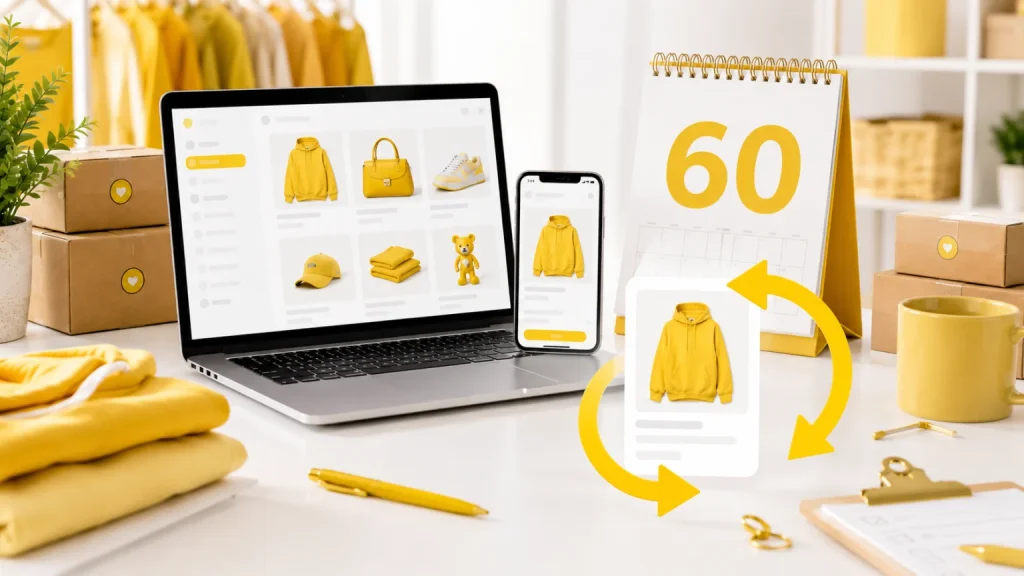
You may also want to relist when a Whatnot listing has stopped getting engagement. If views, clicks, likes, or buyer interest have dropped off completely, the item may need relisting.
Relisting on Whatnot is also a good idea when the listing itself needs improvement. If your listing title is too short, your photos are not good enough, your item description is missing details, or your price no longer feels competitive, relisting gives you a reason to fix those issues before putting the item back in front of buyers.
You should also consider relisting when your inventory has multiple similar items, but only some of them are selling. This may be a sign that the unsold variants need better keywords, clearer photos, or a different price point.
Seasonal timing is another smart reason to relist. If you have items that match an upcoming season, event, trend, or holiday, relisting them before demand increases can help you attract buyers while interest is higher.
Also Read: How to Relist on Poshmark?
How Often Should You Relist on Whatnot?
You should not relist the same Whatnot item too often. A safe approach is to relist an item about once every 60 days if it has not sold and is no longer getting attention.
Relisting on Whatnot too frequently is generally not recommended. If buyers keep seeing the same items again and again, they may start ignoring them, even if the items are good. This can also make your fresh listings feel less exciting because buyers may assume they have already seen everything before.
At the same time, you should not leave old Whatnot listings untouched forever. If a listing has been sitting for months with no movement, it may need a refresh.
A good way is to review your Whatnot listings every few weeks. Look for items with low engagement, old post dates, poor photos, weak titles, or outdated prices. Then decide which listings should be edited, relisted, discounted, or removed.
How to Relist on Whatnot Using the Sidekick Tools app?
1. Log in to the Sidekick Tools app on your phone.
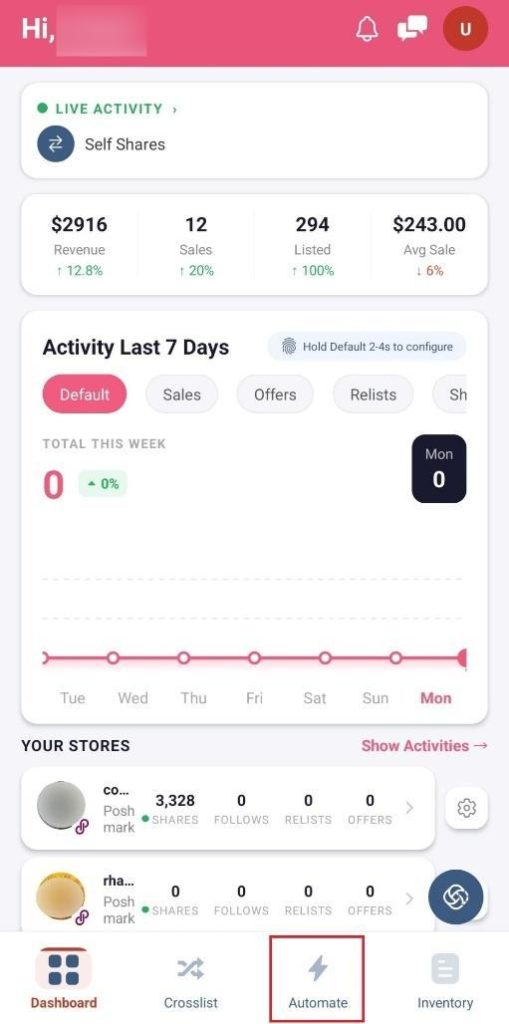
2. Next, tap “Automate” at the bottom of your screen.
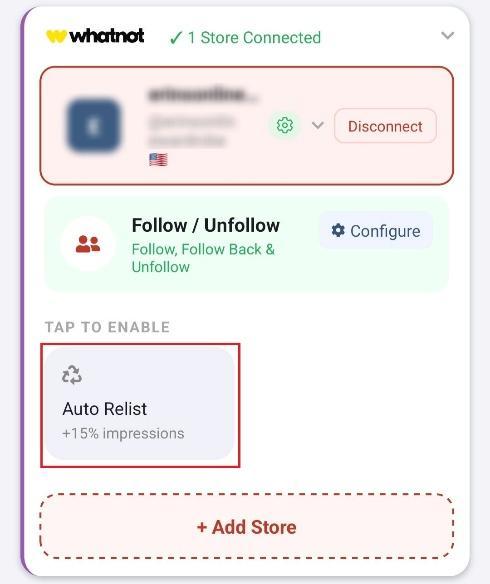
3. Tap “Whatnot” and select your Whatnot Shop.

4. Then, tap the “Auto Relist” tab.
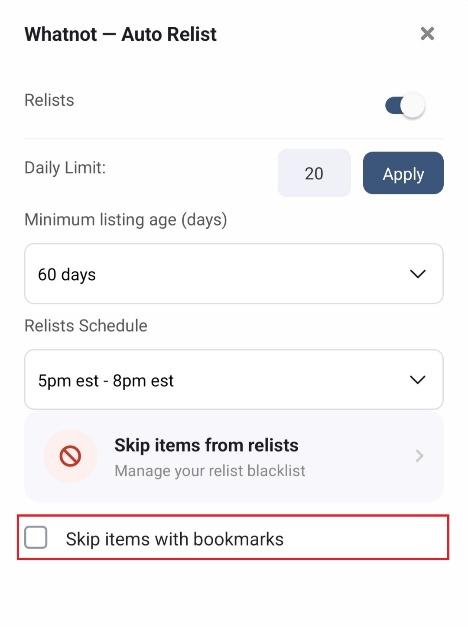
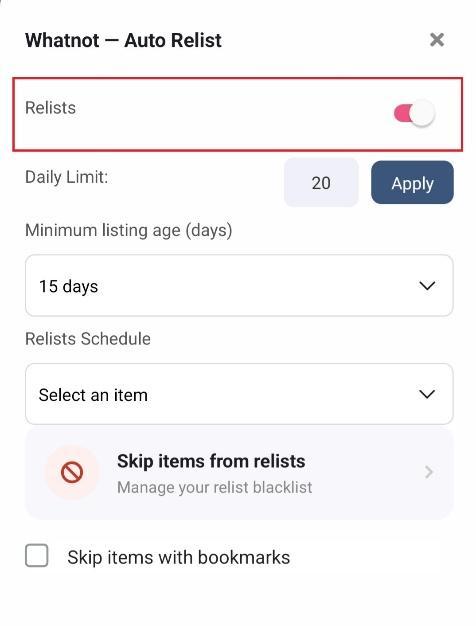
5. In the Auto Relist Settings, turn on the “Relists” toggle.
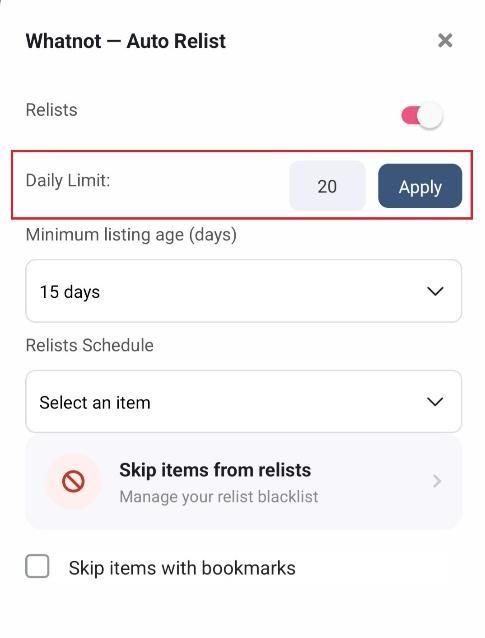
6. Select the “Daily Limit” and tap the “Apply” button.
7. Next, select the “Minimum Listing Age (Days)” from the dropdown menu.
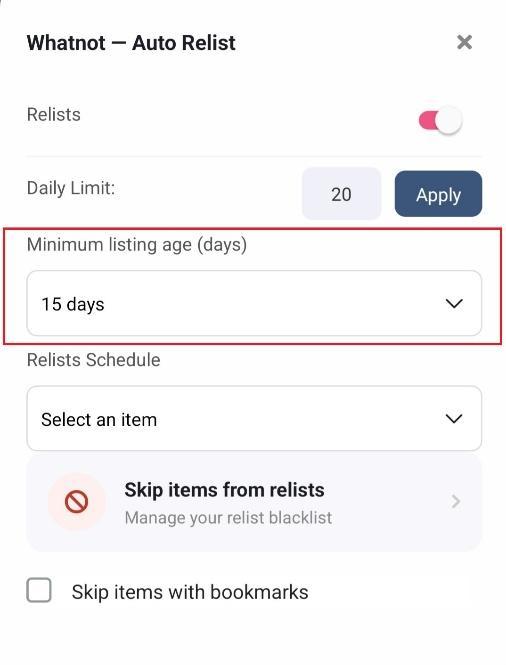
8. Then, select the “Relists Schedule” from the dropdown menu.

9. Skip Items from Relists
a) Lastly, tap “Skip Items from Relists” if you don’t want to relist some of your items.
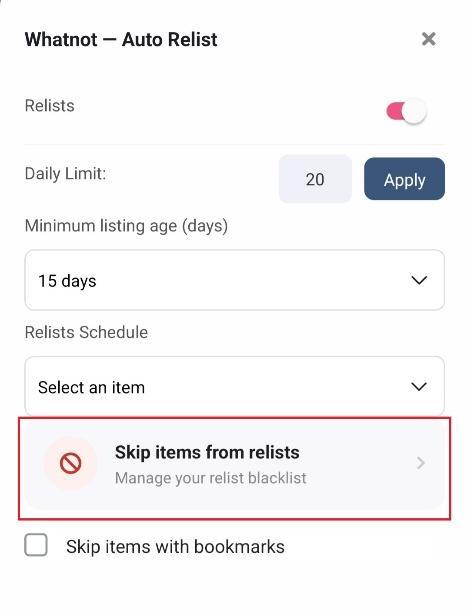
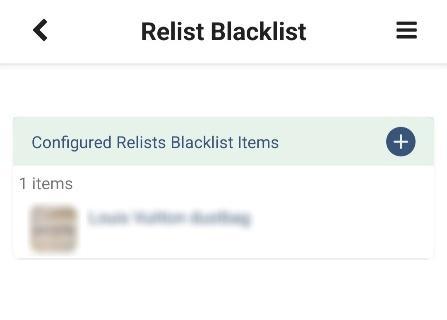
b) Tap the + icon next to “Configured Relists Blacklist Items.”
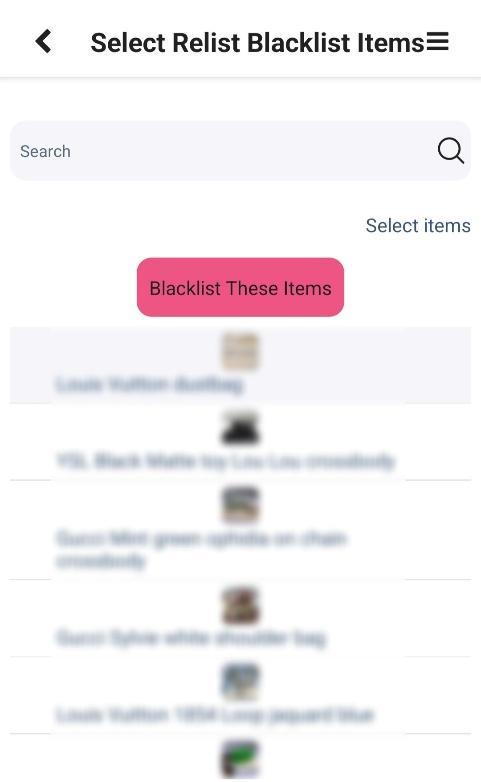
c) Select the items one by one that you don’t want to relist and tap the “Blacklist These Items” button.
10. Remove Blacklist Listings
a) If you want to remove a Whatnot listing from the relisting blacklist then tap “Skip Items from Relists.”
b) On the Relist Blacklist Page, you will see all the Whatnot listings that are blacklisted.
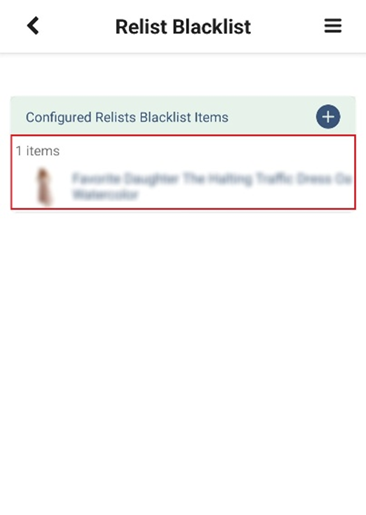
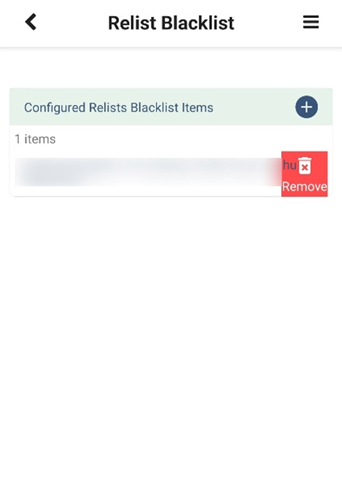
c) Left swipe the item that you want to remove from the blacklist and tap “Remove.” Then, tap “Yes” to confirm.
11. Lastly, check the “Skip Items with Bookmarks” checkbox if you want to prevent relisting items that have already been bookmarked by shoppers.